



Native Android companion app for your Hermes AI agent.



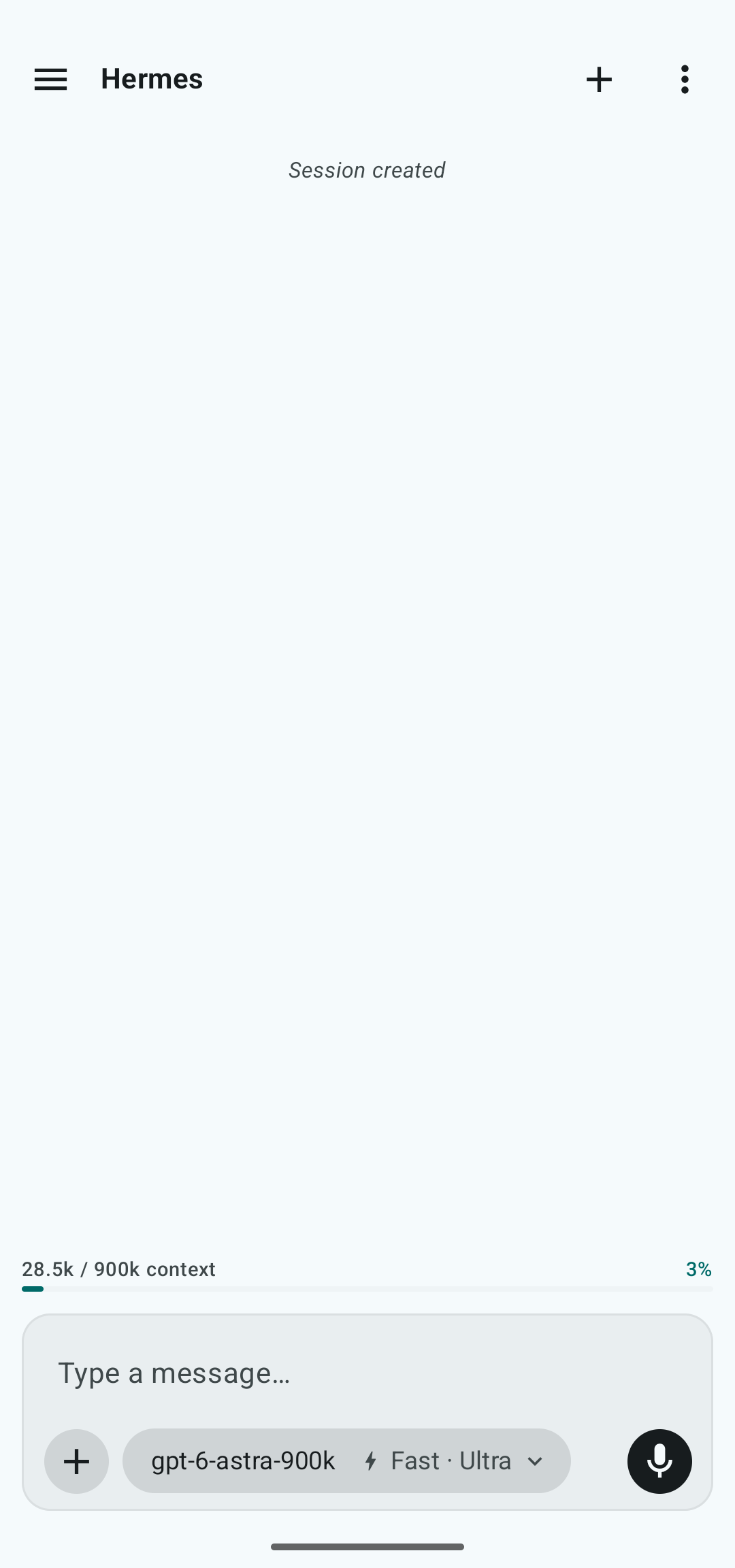
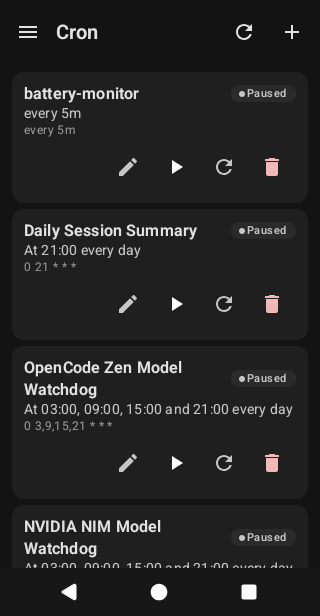
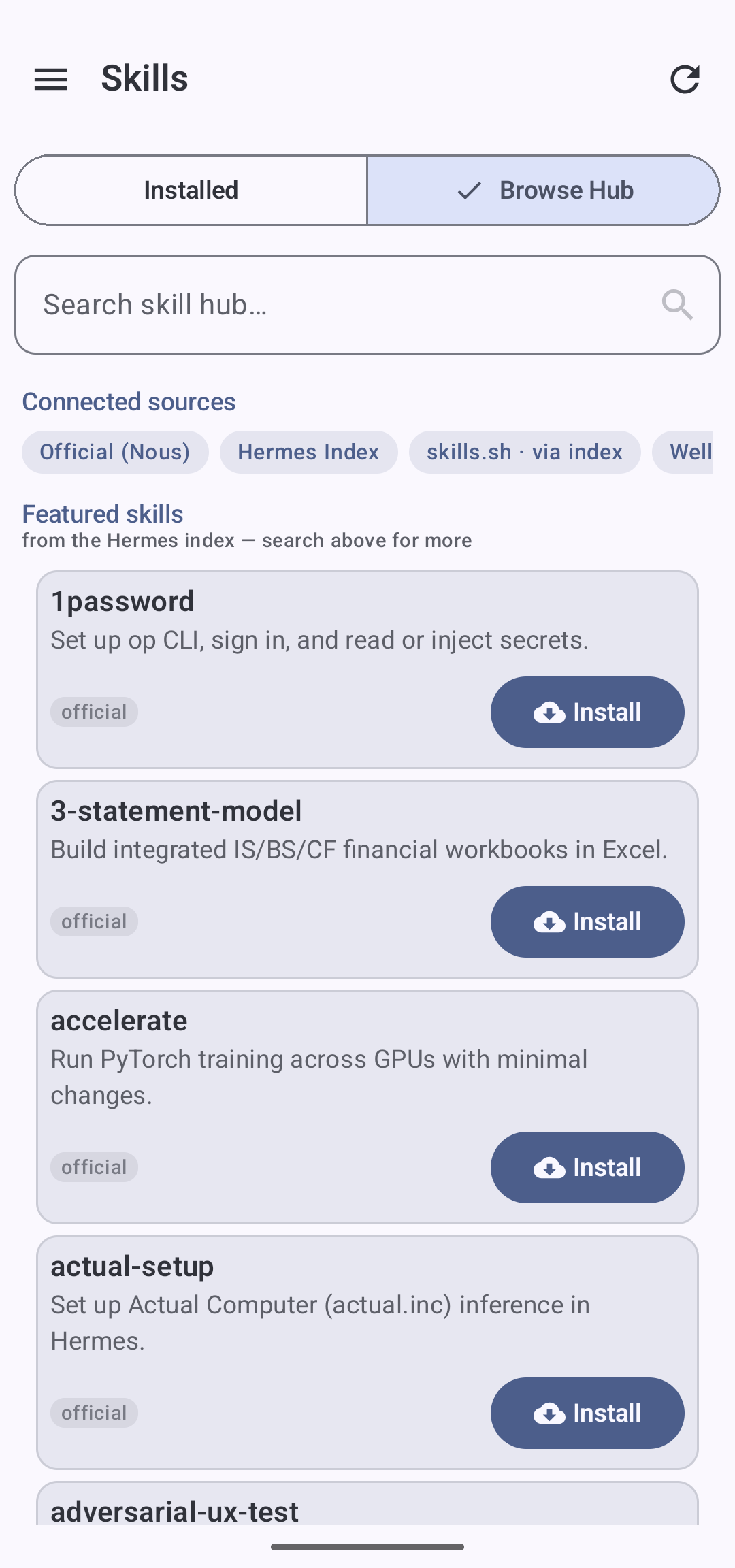
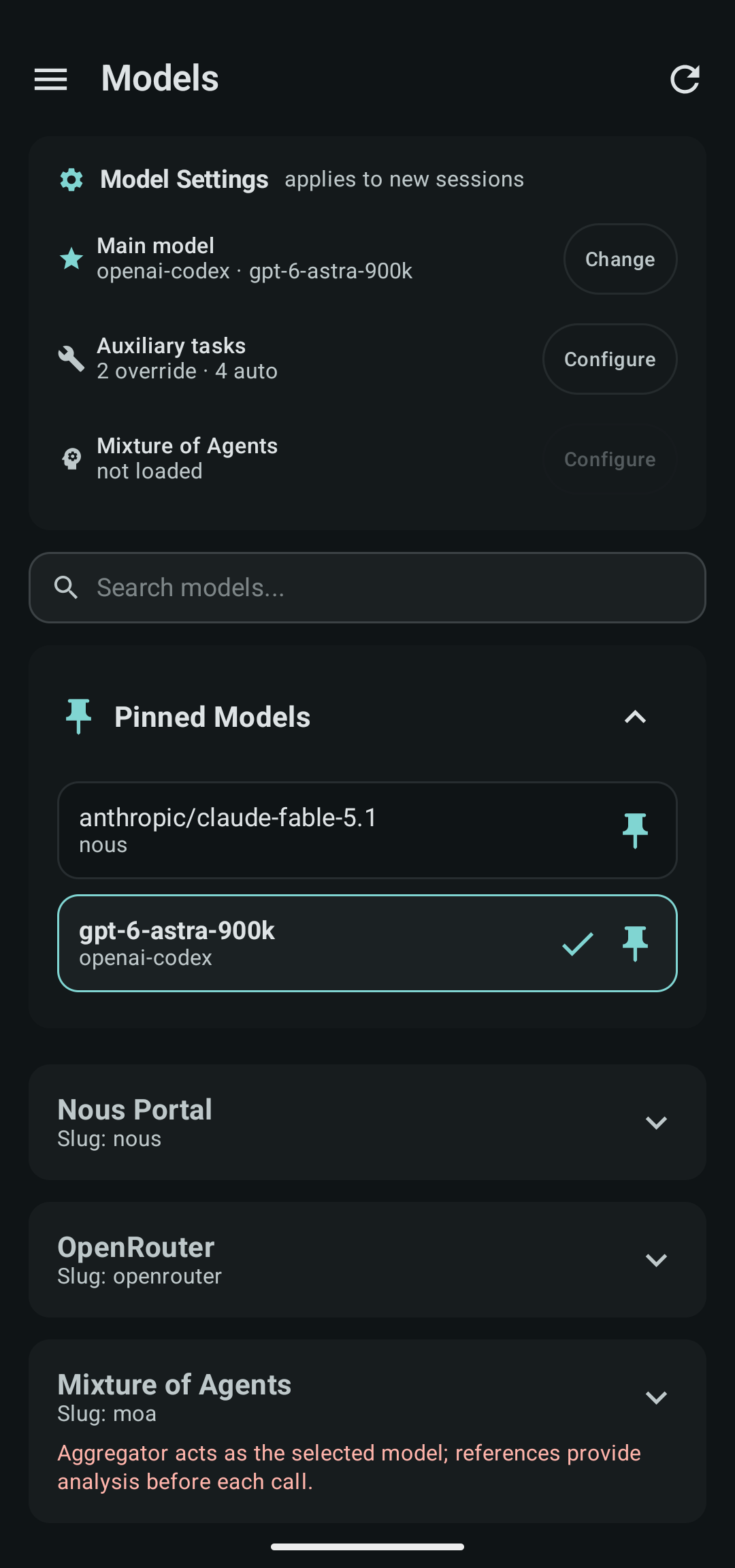
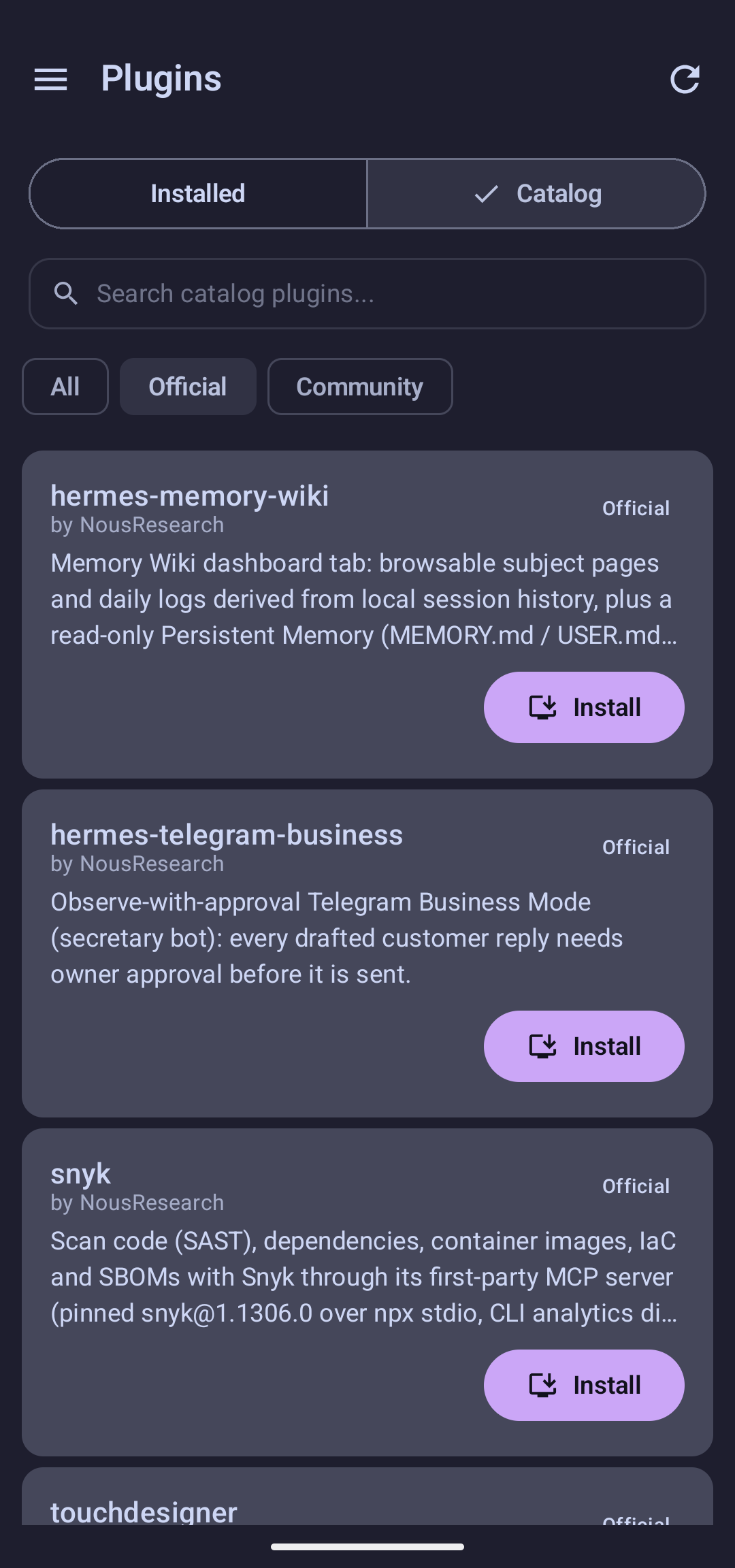
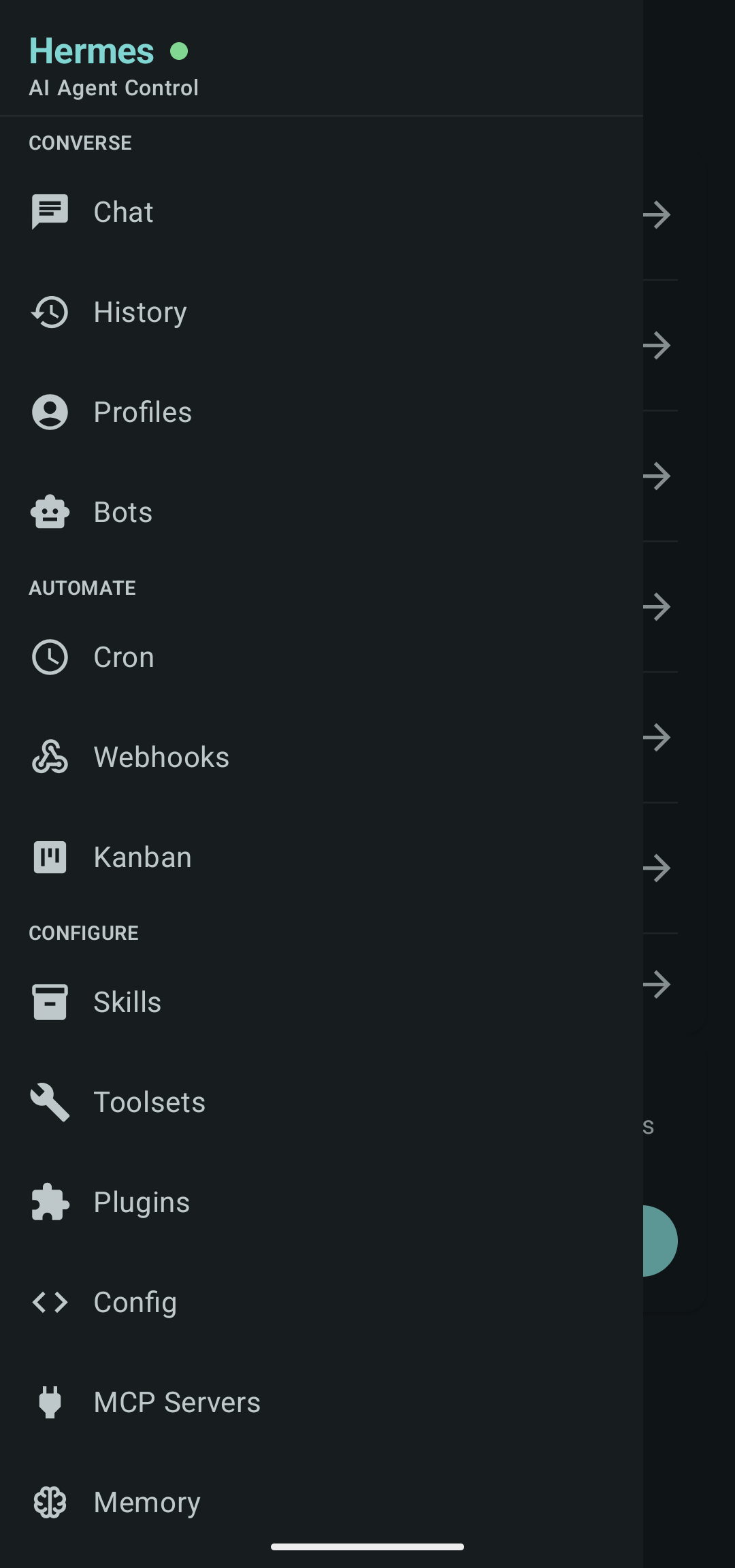
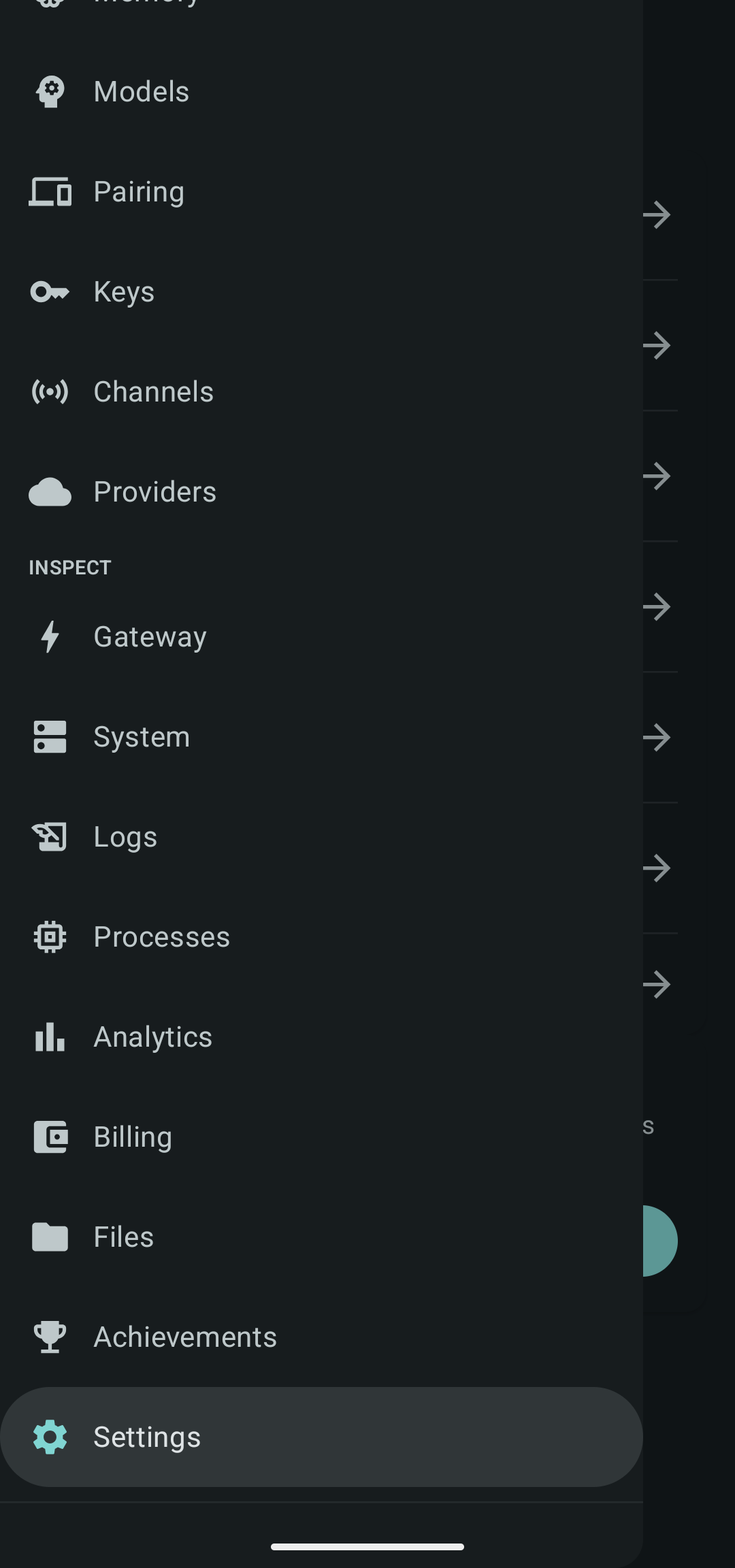
Chat, automation, productivity, and agent configuration — from your phone.
--- ## Features - **Chat:** Talk to your agent. History is stored locally in Room, and notifications support inline replies. - **Configuration:** Manage profiles, skills, plugins, toolsets, and model/provider selections. - **Operations:** Stream and filter live logs, manage cron jobs, edit environment keys, test webhooks, and monitor processes. - **Gateway status:** Check the WebSocket connection, MCP servers, messaging channels, and OAuth providers. - **Productivity:** Manage tasks on Kanban boards, track agent milestones, and browse session history. - **Analytics and billing:** See usage analytics and manage billing or subscriptions. - **Theming:** Seven built-in presets (Default, Monochrome, Gruvbox, Catppuccin, AMOLED, Nord, Garnet), plus Material You dynamic colors on supported devices. - **Material 3 design:** Pull-to-refresh, a scroll-aware top bar, and customizable bottom navigation. --- ## Quick Start 1. Install Hermes Mobile from [F-Droid](https://f-droid.org/packages/com.m57.hermescontrol/), or download the APK from the [latest GitHub release](https://github.com/Hy4ri/hermes-mobile/releases/latest). 2. Start your Hermes dashboard on a host your phone can reach. 3. Open the app, tap **Sign in**, and follow [Authentication](#authentication). --- ## Authentication The app detects which auth mode your dashboard uses and shows only the fields you need. > **Security:** Use HTTPS for remote connections. Plain HTTP/WS is for trusted local networks only, because authentication does not encrypt the transport. ### 1. Start the dashboard On the host machine: ```bash hermes dashboard # loopback (127.0.0.1:9119) — no auth needed hermes dashboard --host 0.0.0.0 # LAN — requires auth ``` For LAN access, set credentials in `~/.hermes/config.yaml`: ```yaml dashboard: basic_auth: username: admin # pick your own password: hermes # pick your own ``` ### 2. Connect the app Tap **Sign in** on the landing screen and enter the dashboard host and port. The app probes the dashboard and shows the fields it needs. **Token only** (dashboard on the same machine, bound to loopback) - Enter the **Token**. You can find it in `~/.hermes/dashboard-token.txt` or in `~/.hermes/.env` as `HERMES_DASHBOARD_SESSION_TOKEN`. - The app can also extract the token from the dashboard page for you. **Basic auth** (dashboard on the LAN behind a password) - Enter your **Username** and **Password** (default `admin` / `hermes`). - The app logs in, stores a session cookie, and requests a WebSocket ticket automatically. ### Cloudflare Access and custom headers 1. Enter your dashboard's HTTPS URL on the login screen. 2. Tap **Custom headers**, then **Add Cloudflare headers**. 3. Enter your service token's `CF-Access-Client-Id` and `CF-Access-Client-Secret` values. 4. Tap **Save**. The app probes the dashboard again, then shows the Hermes login fields. Your [Cloudflare Access policy](https://developers.cloudflare.com/cloudflare-one/access-controls/service-credentials/service-tokens/) must accept the service token. These headers authenticate with Cloudflare; you still need to complete Hermes authentication. **Other headers.** You can add any custom header name and value in the same editor. To edit or remove saved headers, open **Custom headers** from login, or from the saved connection's edit dialog in Settings. Values are masked and stored in encrypted preferences. Saving an empty list removes the headers for that URL. **Where headers are sent.** - Profiles with the same server URL share headers. - They apply to probes, login, API and media requests, and WebSocket handshakes. - Each URL's scheme, host, port, and path prefix limit where its headers go. - Redirects outside that scope do not receive them, and WebSocket redirects are not followed. - The app manages `Authorization`, `Cookie`, and transport headers itself. ### Connection profiles Have multiple gateways? Switch between them in **Settings → Connection profiles**. Each profile stores its own host, port, and token. --- ## Contributing Contributions are welcome! Read [CONTRIBUTING.md](CONTRIBUTING.md) for the branch workflow, code style, and PR checklist. - **Translations:** Help translate the app on [Hosted Weblate](https://hosted.weblate.org/projects/hermes-mobile/hermes-mobile/). - **Conventions and architecture:** [AGENTS.md](AGENTS.md). - **Visual and interaction requirements:** [DESIGN.md](DESIGN.md). - **Theme implementation:** [THEMES.md](app/src/main/java/com/m57/hermescontrol/theme/THEMES.md). --- ## Build from source ### Prerequisites - **JDK 21+** (used for Kotlin compilation and the Gradle toolchain). - An **Android SDK** matching the compile SDK in [`app/build.gradle.kts`](app/build.gradle.kts), from Android Studio or the **Nix** development environment. Set `ANDROID_HOME` or `sdk.dir` in `local.properties`. ### Build and install ```bash git clone https://github.com/Hy4ri/hermes-mobile.git cd hermes-mobile ./gradlew assembleDebug adb install app/build/outputs/apk/debug/app-debug.apk ``` For release builds, set the keystore environment variables (`KEYSTORE_PATH`, `KEYSTORE_PASSWORD`, `KEY_ALIAS`, `KEY_PASSWORD`). Or let the GitHub Actions release workflow build on a `v*` tag push. ### Nix emulator The Nix development shell turns on physical keyboard input in an existing `hermes_dev` AVD. It respects `ANDROID_AVD_HOME` and `ANDROID_USER_HOME`, defaulting to `~/.android/avd`. The shell does not create the AVD, so create `hermes_dev` first. Close any running emulator, then cold boot once to apply the setting: ```bash nix develop --command emulator -avd hermes_dev -no-snapshot-load ``` Later launches can omit `-no-snapshot-load`. --- ## Project structure ``` app/src/main/java/com/m57/hermescontrol/ ├── data/ # Local (Room, AuthManager), Remote (Retrofit, OkHttp), WS (WebSocket), Models ├── notification/ # Foreground service + inline reply for chat notifications ├── theme/ # Preset-based design system (7 themes), status colors, spacing, typography ├── ui/ # Compose feature screens + common components (HermesScaffold, StateViews) ├── util/ # CronExpressionFormatter, LocaleContextWrapper └── Navigation*.kt # Navigation3 wiring, keys, screen registry, controller ``` ## Tech stack - **Language:** Kotlin with KSP - **UI:** Jetpack Compose, Material 3 / Material You - **Navigation:** Navigation3 - **Networking:** Retrofit, OkHttp, Kotlinx Serialization - **Database:** Room with SQLCipher encryption - **Security:** `EncryptedSharedPreferences` (AES256-GCM), DataStore - **Images:** Coil - **Testing:** JUnit, MockK, Turbine, Espresso, Compose UI testing - **Formatting:** `ktlint` 1.8.0 (checked in CI) Dependency versions live in [`gradle/libs.versions.toml`](gradle/libs.versions.toml). Build configuration and dependency scopes live in [`app/build.gradle.kts`](app/build.gradle.kts). --- ## Support the project If Hermes Mobile is useful to you, consider supporting its development on [Ko-fi](https://ko-fi.com/m_5_7). --- ## License Copyright © 2026 M57 (Hy4ri). Licensed under the Apache License, Version 2.0. See the [LICENSE](LICENSE) file for details.